How to organise your lessons into folders
Kallydo team ·
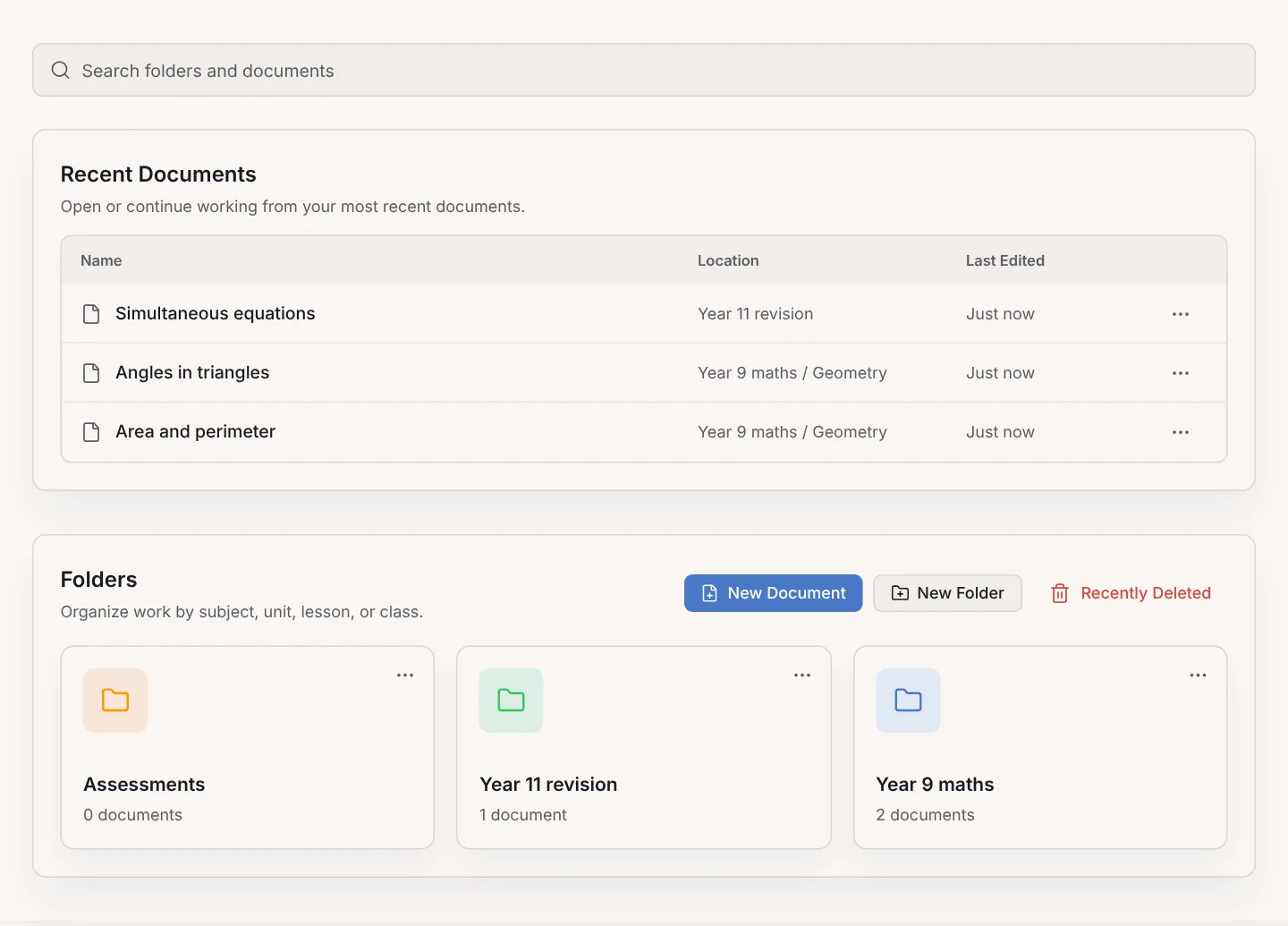
In Kallydo, every lesson is a document, documents live in folders, and a folder can hold other folders. So you can give each class a folder, give each topic a folder inside it, and keep every lesson where you will look for it next term. This post shows how to set that up, add lessons, and move one that ended up in the wrong place.
How are lessons organised in Kallydo?
In three layers: folders, documents and pages. A folder holds documents and other folders. A document is one lesson, made of A4 pages. A page is what you draw on, with its own paper.
Home shows both halves of that at once. Recent Documents lists the lessons you worked on last, each with the folder it lives in, such as "Year 9 maths / Geometry". Below it are your folders.
How do you create a folder?
From home:
- Select New Folder.
- Name it, for example after the class: "Year 9 maths".
- Choose a colour, so the folder is easy to spot on home.
- Select Create folder. The folder appears on home straight away.
To put a folder inside another one, open the outer folder first, then select New Folder there. The path at the top of the page, such as "Home / Year 9 maths / Geometry", shows where you are.
How do you add a lesson to a folder?
Open the folder the lesson belongs in and select New Document. Give the lesson a name and select Create document. The folder you are in is already chosen, so the lesson lands there.
You can also select New Document from home and pick the folder in the same window, or create a new folder for it there.
How do you move a lesson to another folder?
Use the ••• button next to the lesson:
- Select ••• next to the lesson, on home or inside its folder.
- Choose Move.
- Pick the new folder. Folders inside folders show their full path, such as "Year 9 maths / Algebra".
- Select Move document.
The lesson keeps its pages and its name; only its place changes. The same menu lets you rename or duplicate a lesson, and a folder's ••• menu lets you rename or move the whole folder.
How do you find a lesson again?
Three ways, from quickest to most thorough:
- Recent Documents on home, for anything you worked on lately.
- The search bar at the top of home, which searches folders and documents by name.
- Your folders, opened one level at a time.
Naming helps all three. A lesson called after its topic, such as "Angles in triangles", is easier to search for than "Lesson 4".
What folder structure works for teaching?
Start with what you teach, then the order you teach it in. A layout many teachers will recognise:
| Level | Example | Why |
|---|---|---|
| Class or course | Year 9 maths | One place per group you teach |
| Topic | Geometry | Matches the scheme of work |
| Lesson | Angles in triangles | One document per lesson, with its pages |
Tutors with one-to-one students can use the student's level or exam board as the top level instead. Keep student names out of folder names if you ever share your screen.
Try the pages and paper first
The Kallydo demo board is a working whiteboard that runs in your browser, with no account and no sign-up. It opens on a single document, so you can try the pages and the paper before you build your folders. What each paper type is for is in choosing paper in Kallydo.