Export a whiteboard page as a PDF or PNG
Kallydo team ·
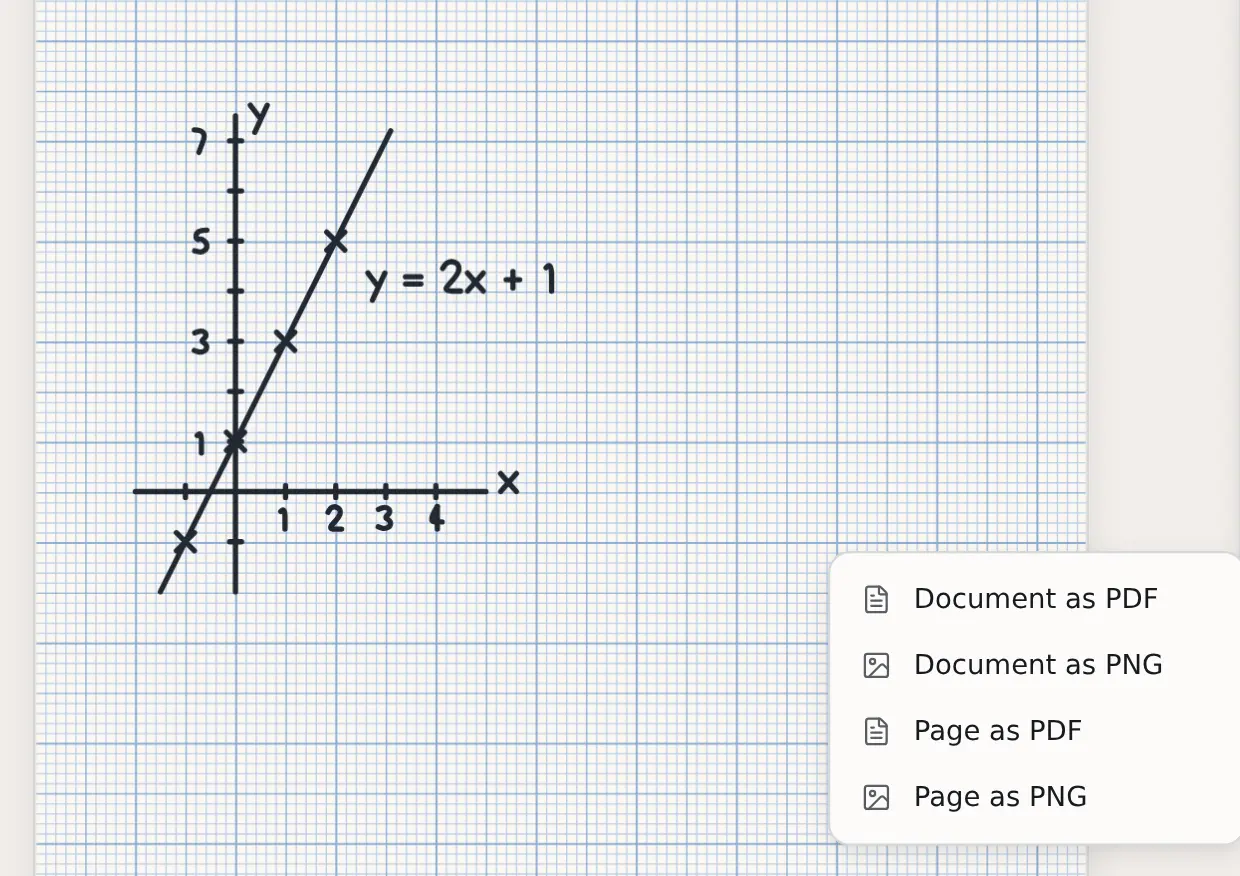
To export from Kallydo, open the menu at the top right of the board, choose Download, then pick what to export: the whole document or just the page you are on, as a PDF or as a PNG image. The file downloads straight away, and you can send it to students the same way you send any other file.
How do you export a page or a document?
- Open the document you want to export. To export one page, select that page in the Pages list first.
- Open the menu with the ••• button at the top right of the board.
- Choose Download, then one of the four options: Document as PDF, Document as PNG, Page as PDF or Page as PNG.
The file goes wherever your browser saves downloads, usually your Downloads folder.
Which download option should you choose?
Choose by what the student will do with it: read the whole lesson, or look at one page.
| Option | What you get | Good for |
|---|---|---|
| Document as PDF | One PDF with every page, in order | Handing out a whole lesson, or printing it |
| Document as PNG | One PNG image for each page | Uploading pages as pictures, one at a time |
| Page as PDF | A PDF of the page you are on | One worked example or worksheet page |
| Page as PNG | An image of the page you are on | Pasting into a chat, an email or slides |
Document as PDF is the usual choice after a lesson. The student gets the notes, the worked examples and the practice questions together, in the order you taught them.
To send just one page as a picture, the steps are the same until the last click:
What are the files called?
Each file is named after the document, and a page export adds the page's
name. Names are written in lower case with hyphens, so a document called
"Straight-line graphs" downloads as straight-line-graphs.pdf, and its first
page as a PNG downloads as straight-line-graphs-page-1.png.
Rename the document before you export if you want a clearer file name for students. Document as PNG saves one file per page, so your browser may ask whether the site can download several files at once.
How do you send the file to students?
Attach it the way you already share work: by email, in a messaging app, or on your school's learning platform. A PDF opens on almost any phone, tablet or computer, so it is the safer choice when you do not know what your students will open it on.
Exporting does not change the original. The document stays in Kallydo, saved to your account, so you can add to it next lesson and export it again.
Try it on the demo board
The Kallydo demo board is a working whiteboard that runs in your browser, with no account and no sign-up. Draw something, then open the ••• menu and choose Download to see the four options for yourself.